Utterwove
How to apply this guide
Choose the correct source for a supported app or a person speaking nearby.
Start with
Start a clear, spoken clip in an app. In Live Captions, choose the device audio option and confirm that its words appear.
Check before you finish
Use device audio for compatible playback and microphone for someone in the room. Treat captions as an aid and verify names or essential instructions when the speech is hard to hear. Check a second compatible app if the visible source remains the same but the playback test produces no words.
Evidence to keep: Confirm the app edition, permission and destination together; an allowed permission alone does not prove that insertion will work. This page’s key limit is: Choose the correct source for a supported app or a person speaking nearby.
Start here
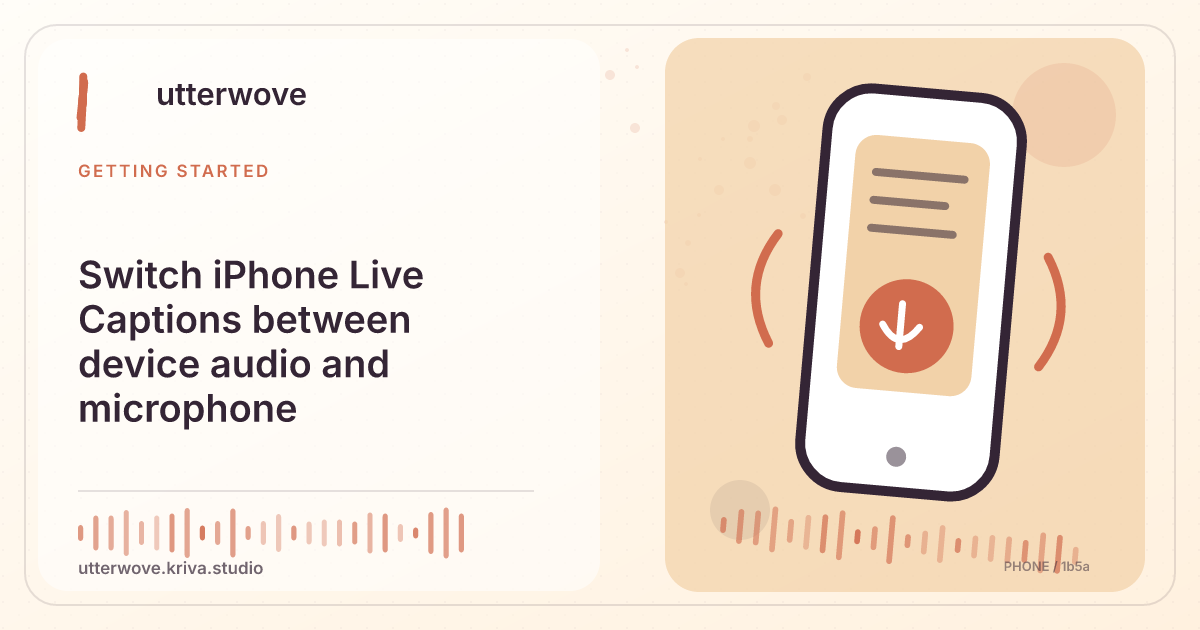
iPhone Live Captions can follow audio played on the device or words gathered by its microphone on supported setups. Selecting the source matters when both kinds of audio are present.
Test the device audio source
Start a clear, spoken clip in an app. In Live Captions, choose the device audio option and confirm that its words appear.
Check the microphone separately
Pause the clip, switch to the microphone and ask a nearby speaker to say a short different sentence. Check that the new source is active before starting the conversation.
Choose the source for the situation
Use device audio for compatible playback and microphone for someone in the room. Treat captions as an aid and verify names or essential instructions when the speech is hard to hear. Check a second compatible app if the visible source remains the same but the playback test produces no words.